Tutorial 2 of 5
Crop, straighten and add styled text
Beginner 6 min
Reframe a photo and add an editable caption or watermark.
Choose a frame
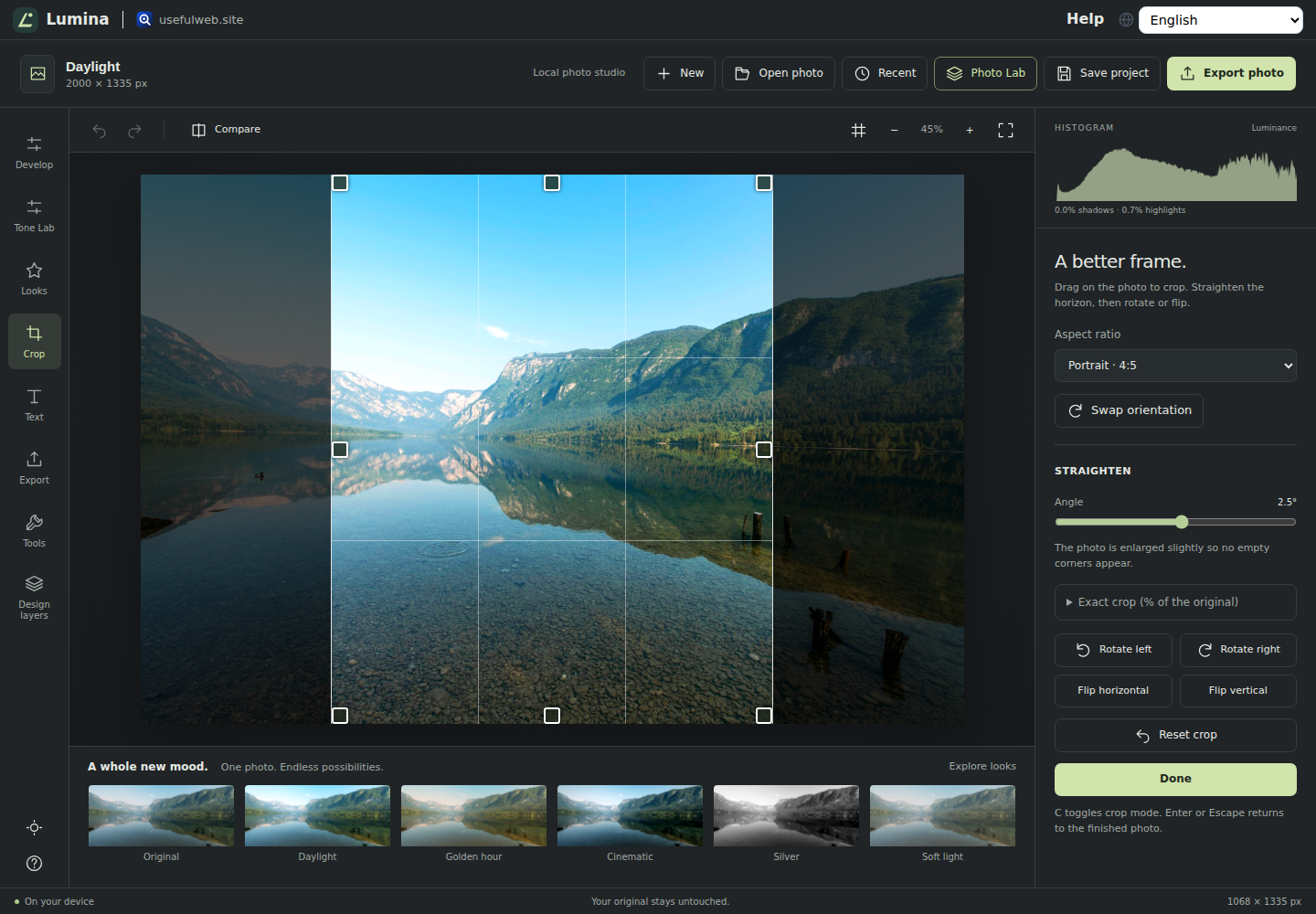
Choose Crop or press C. The whole photo appears with a crop box: drag inside the box to move it, drag a corner or edge handle to resize it, or drag outside the box to draw a new one. Aspect ratio keeps the box free or locks it to the original ratio, square, 3:2, 4:3, 5:4, 16:9 or their portrait versions; Swap orientation turns a landscape ratio into a portrait one. Press Enter, Escape or Done to see the finished frame.
Straighten rotates the photo by up to 45° in either direction to level a horizon. Lumina enlarges the photo just enough that no empty corners appear. Rotate left, Rotate right and the flips turn the whole frame. For exact values, open Exact crop: Left, Top, Width and Height are percentages of the original photo.
Add a text layer
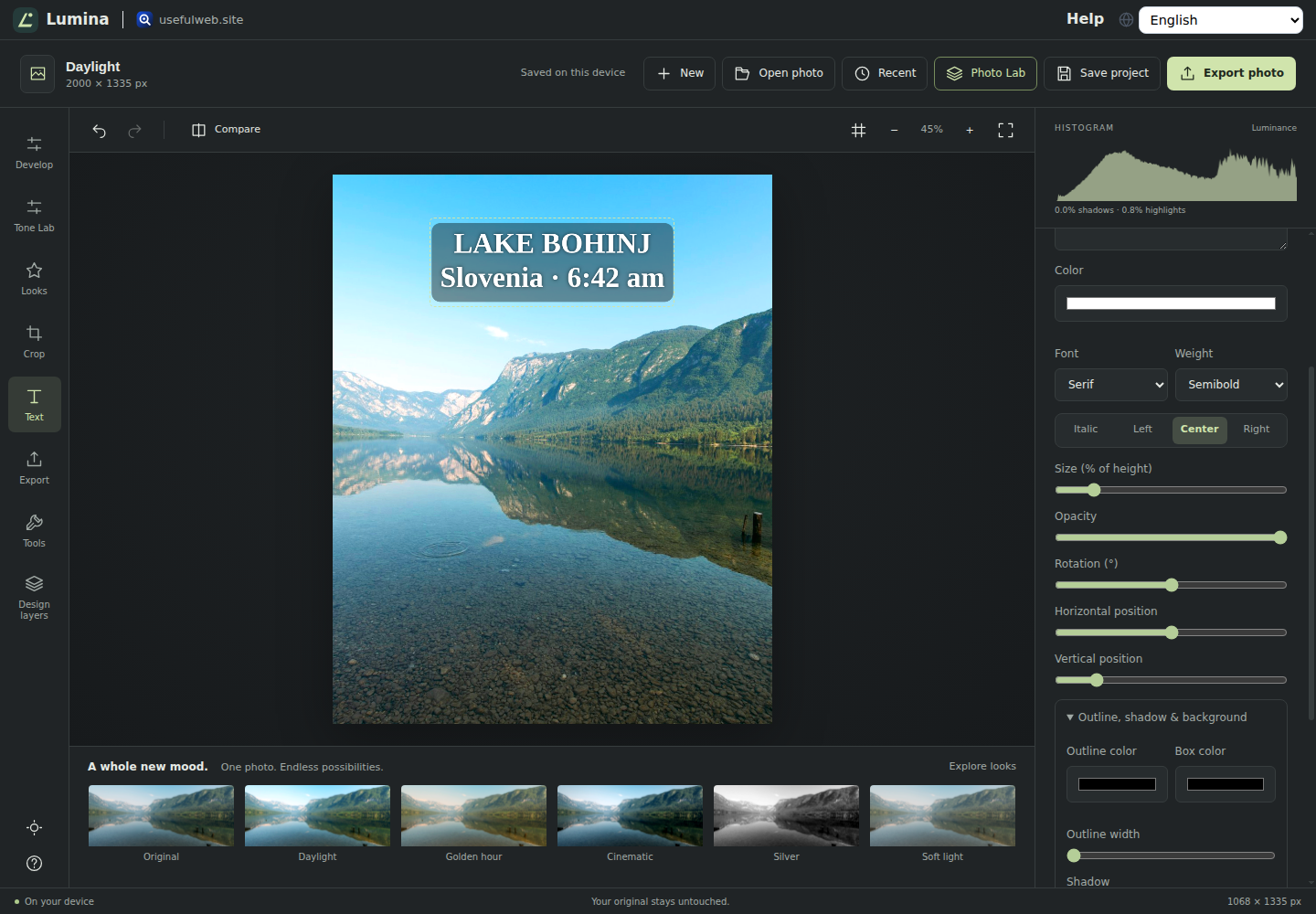
Choose Text (or press T), then Add text layer. Edit the words in the properties panel; press Enter for a new line. Size is a percentage of the image height. Click any text on the photo to select it, then drag it into place, or use the position sliders and arrow keys. Hold Shift with an arrow key for a larger nudge.
Style your words
Choose one of six font styles (sans serif, serif, monospace, rounded, display or script), a weight, italic and left, center or right alignment. Rotation tilts the text. Under Outline, shadow & background you can add an outline in any color, adjust the soft shadow, or place a rounded box behind the text — useful for readable captions over busy areas. A white signature with a thin dark outline and low opacity makes a subtle watermark.
Each text layer can be duplicated, hidden, moved forward or backward, or deleted. Copy and paste work with Lumina text layers. Up to 24 text layers are supported. Fonts come from your device, so appearance may vary slightly across systems.
Use the grid
Grid shows thirds over the photo. It also snaps dragged text positions to five-percent increments. Press G to toggle it. Grid and comparison overlays are never included in your exported image.
Plan an output
Export shows the current cropped dimensions and the corresponding print size at 300 PPI. Print opens a full-resolution image that you can send to your browser's print dialog or save as PDF.
The separate Print Size Planner accepts any pixel dimensions and PPI. Crop & Resize Planner computes fit or fill dimensions without uploading a file. Palette & Text Contrast checks black and white text against individual sRGB colors. A single sample does not guarantee readable text over an entire photograph.
Related utilities
The Tools panel links to compression, classic upscaling, batch resizing and watermarking, metadata inspection, and HEIC/RAW conversion. These are separate utilities. Read their upload and processing notes before sending files.